1. Contributing code
- If you want to contribute code to LIMA, you can do so by following these steps:
Join the LPC Discord at https://discord.gg/7y3D2q5 and become part of the discussions on the #LIMA channel. You can ask questions, get help, and discuss your ideas.
Discuss topics on the GitHub projects at GitHub projects.
Found a simple issue? Submit a pull request against the GitHub Repository at LIMA GitHub - we prefer that the issue has been reported and discussed before gettng pull requests.
1.1. Contributing as part of the LIMA team
As a member of the core LIMA team, you will be given access to the GitHub projects and the LIMA server at limamudlib.dev 7878. This is “old style” MUD development, where we all contribute code and changes to the same codebase. This is a great way to learn how to work with others.
We use the our own internal Discord for discussions and meetings. You will receive an invite to this non-public server when you join the team. GitHub projects is used for managing the development of the mudlib.
Note
If you are interested in joining the core team, please contact us on the #LIMA Discord channel on the LPC Discord server linked above.
1.1.1. Technical details
To setup your account we need to know your full name and real email address, and you need to send us a public ssh key. We will then create an account for you on the LIMA server, and you will be able to start working on the code.
1.2. Using Visual Studio Code to edit server files
If you are lucky enough to have access to the LIMA server, these are the guidelines to edit remotely from your local PC using Visual Studio Code.
Open VS Code
Click this thing at the bottom left corner:
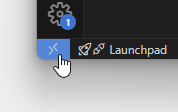
Click connect to host
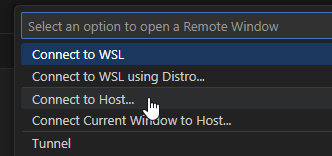
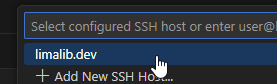
Add new host, username@limamudlib.dev
Select an SSH config file to add it to
Click the thing from step 2 again
Connect to limamudlib.dev
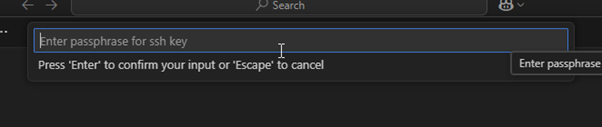
New window appears, enter your SSH key (make sure to have one to protect our server!)
Open folder under the File menu
Use either /home/lima/git/lima/ or /home/lima/git/lima/lib/ depending on if you want driver as part of your workspace.
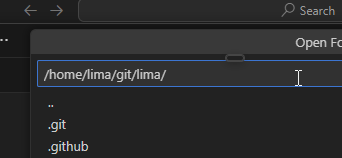
Enter SSH key again (for some reason)

File, Save workspace as in your /home/username/ folder.

- For future times all you need to do is:
Click the thing from step 2
Connect to limamudlib.dev
File, Open Workspace from file (select the file you saved under step 12)
Done!